
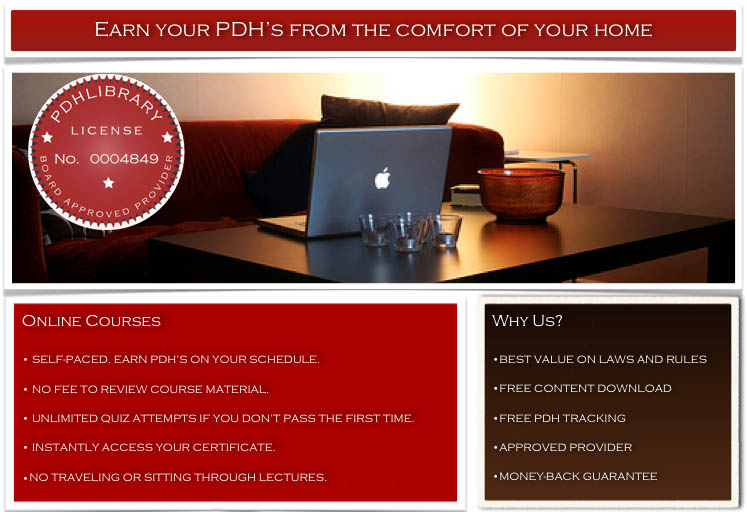
PDH LIBRARY - Online Engineering Continuing Education for Engineers since 2009!
PDHLibrary offers engineering continuing education for licensed professional engineers. We offer courses in ethics, laws, rules, as well as discipline specific engineering courses in the fields of civil, electrical, environmental, mechanical, structural, and transportation engineering.
As noted above, the benefits of online PDH continuing education are numerous including lower prices, convenience, self paced course completion, and certificates of completions which are archived and available 24/7. Let us know how we are doing and what we can do better. We want to make sure using PDHLibrary to fulfill your professional development hour (PDH) needs is easy, convenient, and satisfying.
How to Take one of our Online Engineering Continuing Education Courses
1) Create New Account: Register with our website by clicking on the "Create new account" link (found in the lower left hand corner) or log into your account if you already have one.
2) Download Course Materials: Navigate to the course description page of your choosing by clicking on the name of the course. On the right hand side of each course description page is a download button that you can use to download the course materials to your computer. Read the course materials.
3) Take Quiz: Log into your account. Then click on the quiz button on the right hand side of the course description page to take the quiz. Take the quiz as many times as necessary in order to pass with a 70% or better. You may start the quiz, stop, and then return to the quiz at a later time to finish.
4) Pay for Course: Add the course(s) to you shopping cart by clicking on "Add to Cart" and then complete payment via credit card processing thru PayPal's secure servers. ALTERNATIVELY you can also pay for the course at any time by adding the course to your checkout cart. You can purchase the course either before or after the quiz. The order does not matter unless you wish to view a video course. Video courses may be accessed by clicking on "My Account" and then selecting the video tab. To view the videos for video courses, payment must be received first.
5) View Certificate of Completion: To view your certificates of completion or to review your course history, click on "My account" followed by clicking on the "Courses Taken" tab. You must be logged into your account to review your course history.